[NOTICE] PENUP UPDATE VER 3.9.20
Hello, PENPLEs!
The PENUP Android app has been updated to version 3.9.20.
This update brings new features and brushes.
Today, we’ll introduce what’s new in PENUP version 3.9.20!
First, ‘Drawing guides’ feature is now available.
If you need guide lines while drawing, try using the new 'Drawing guides' feature!
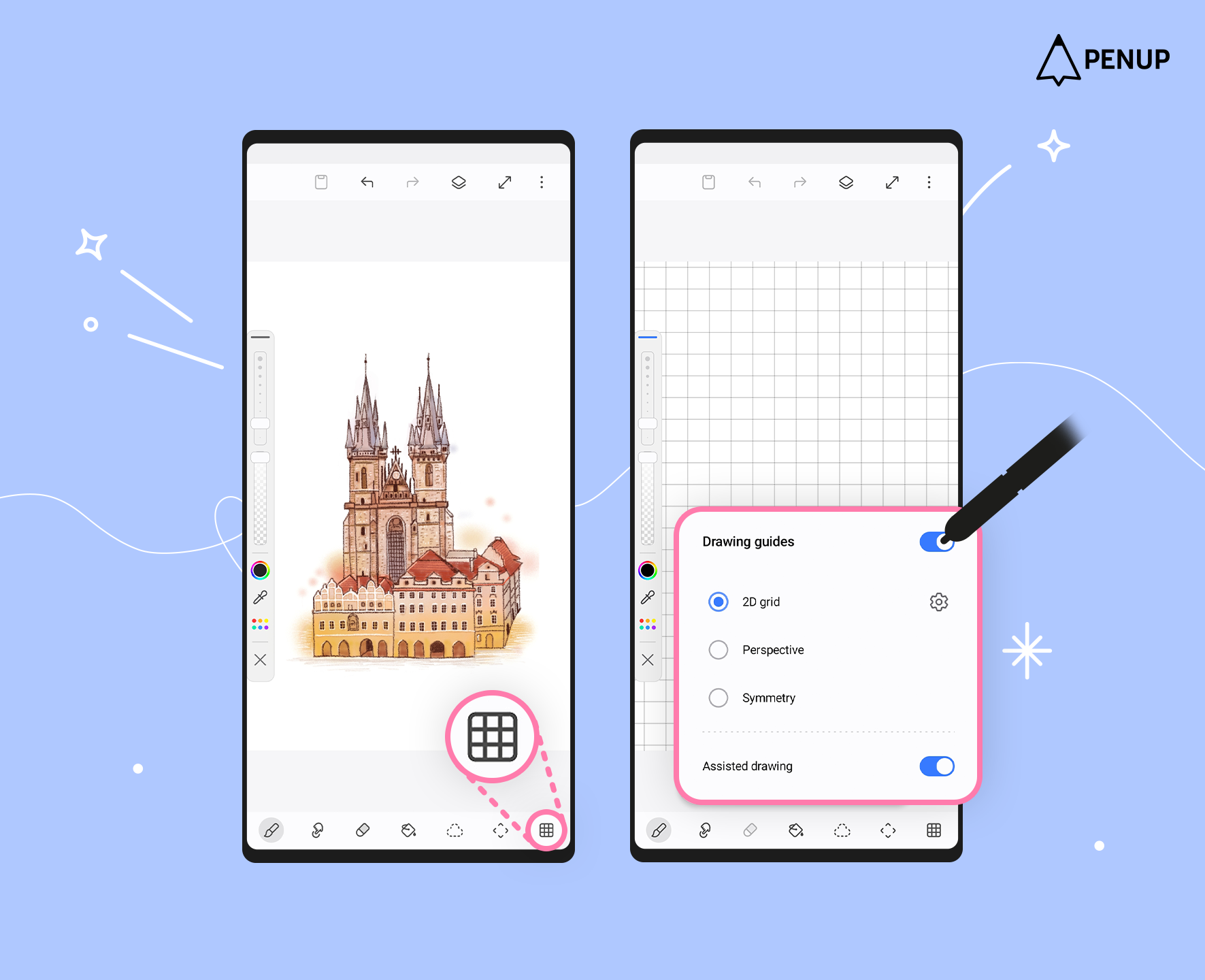
Tap 'Drawing guides' at the bottom of the drawing tool to open various guide settings.
Then, switch the button to ON!
You can use '2D grid', 'Perspective', and 'Symmetry' drawing guides.
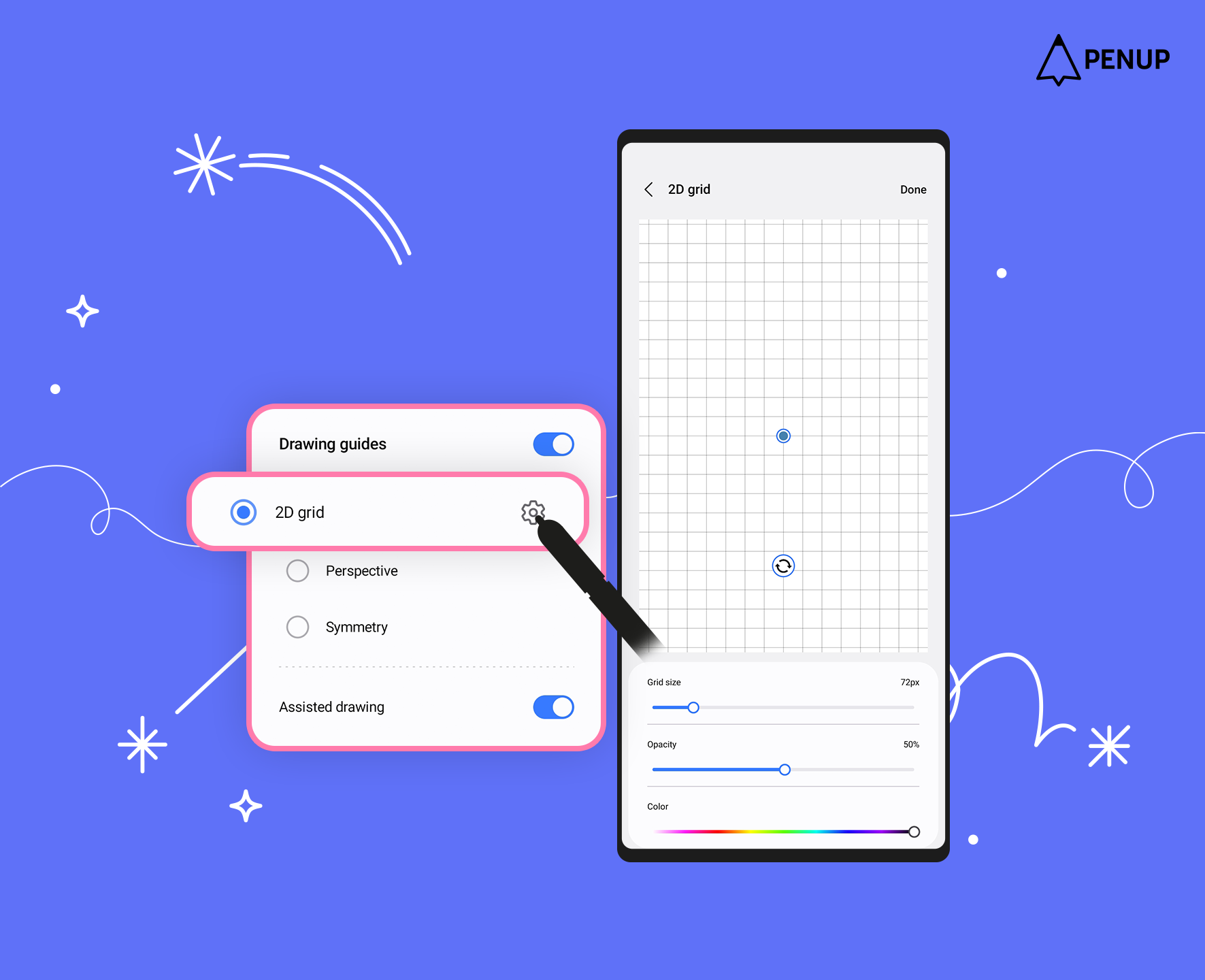
The '2D grid' in Drawing guides is a useful feature when you need reference lines or want to arrange elements.
By tapping the settings button next to '2D grid', you can customize it in various ways.
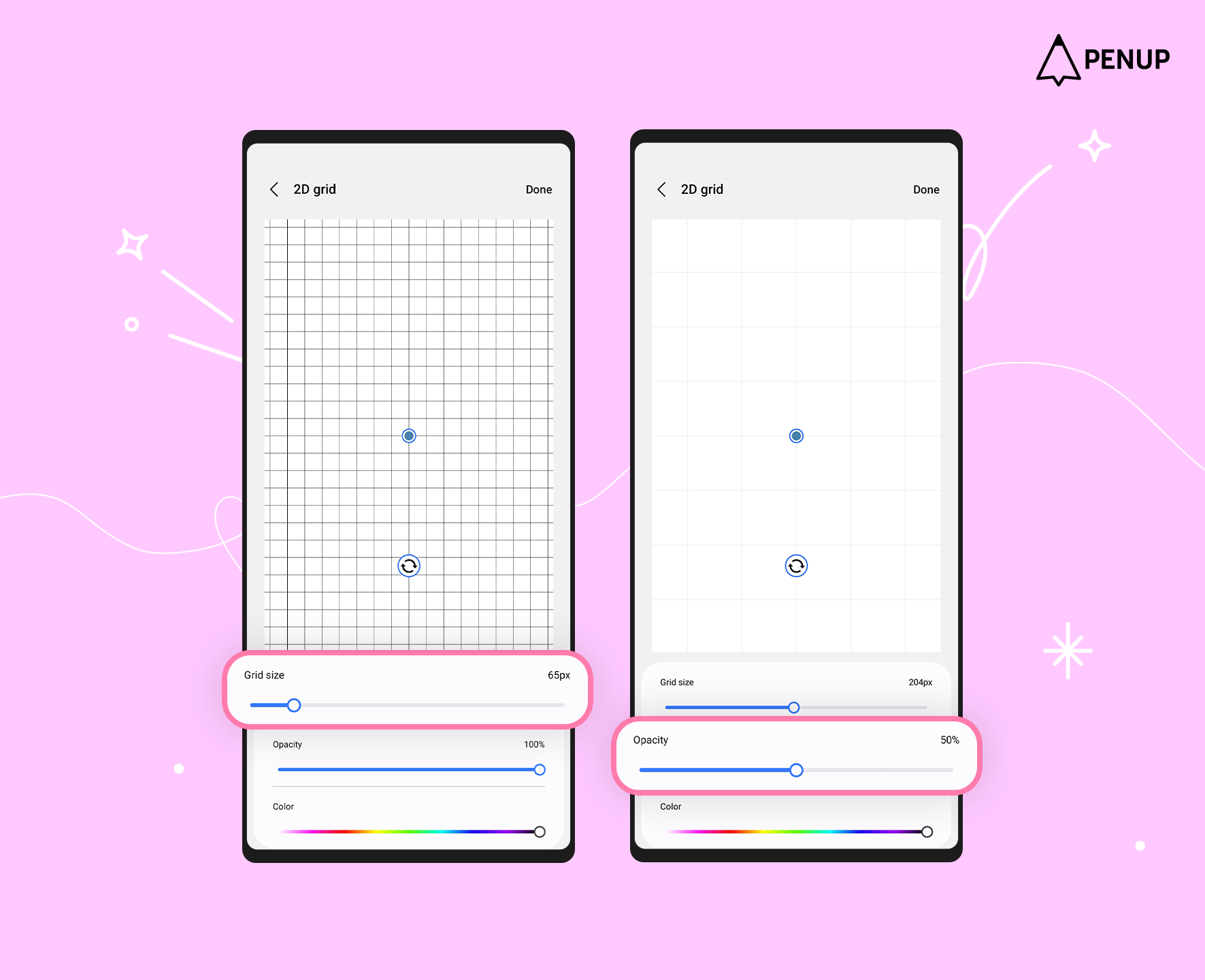
Adjusting the 'Grid size' changes the spacing between the squares.
And changing the 'Opacity' lets you make the lines clearer or more transparent.
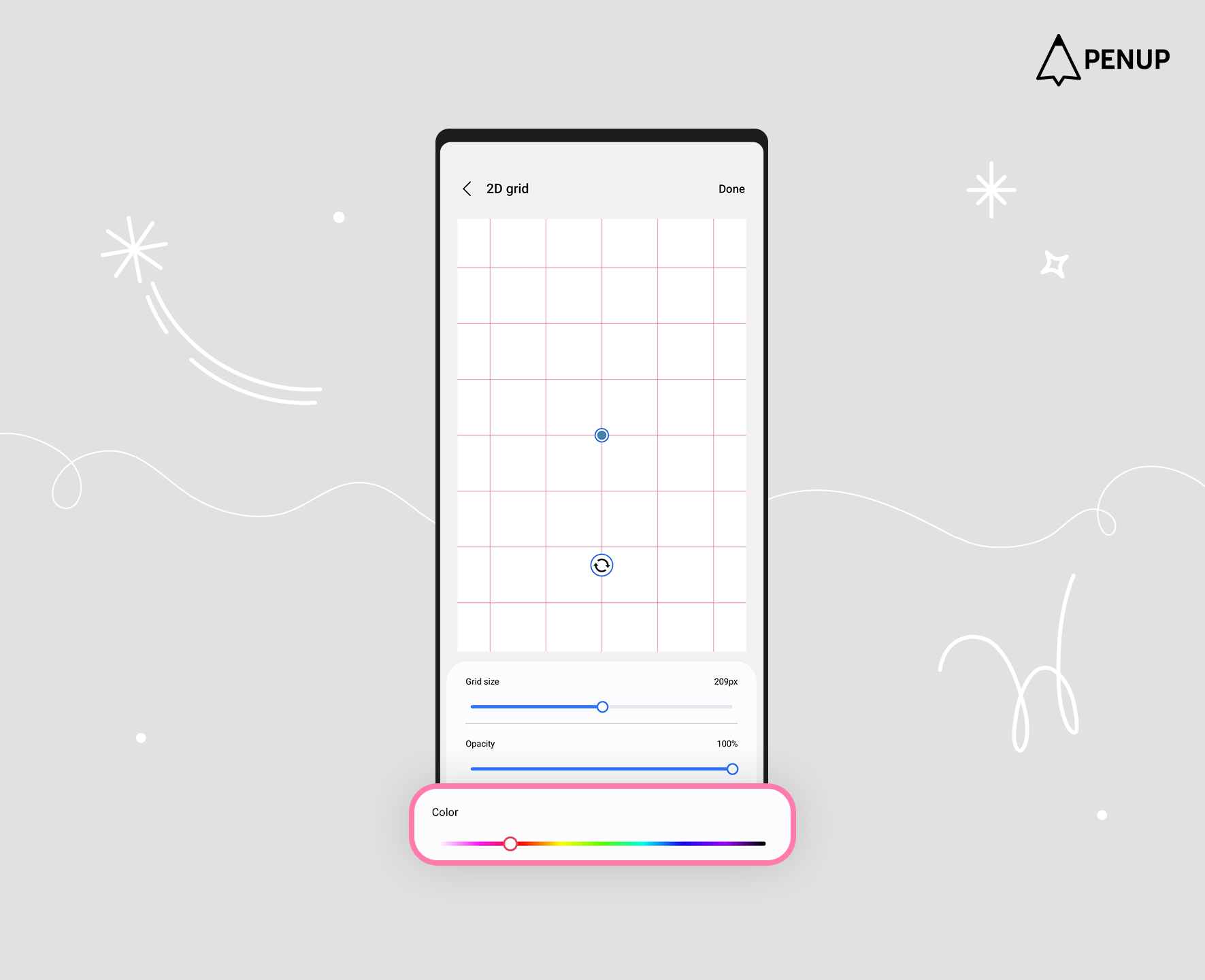
You can also use 'Color' to choose the grid color you want.
* Drawing guides – Perspective
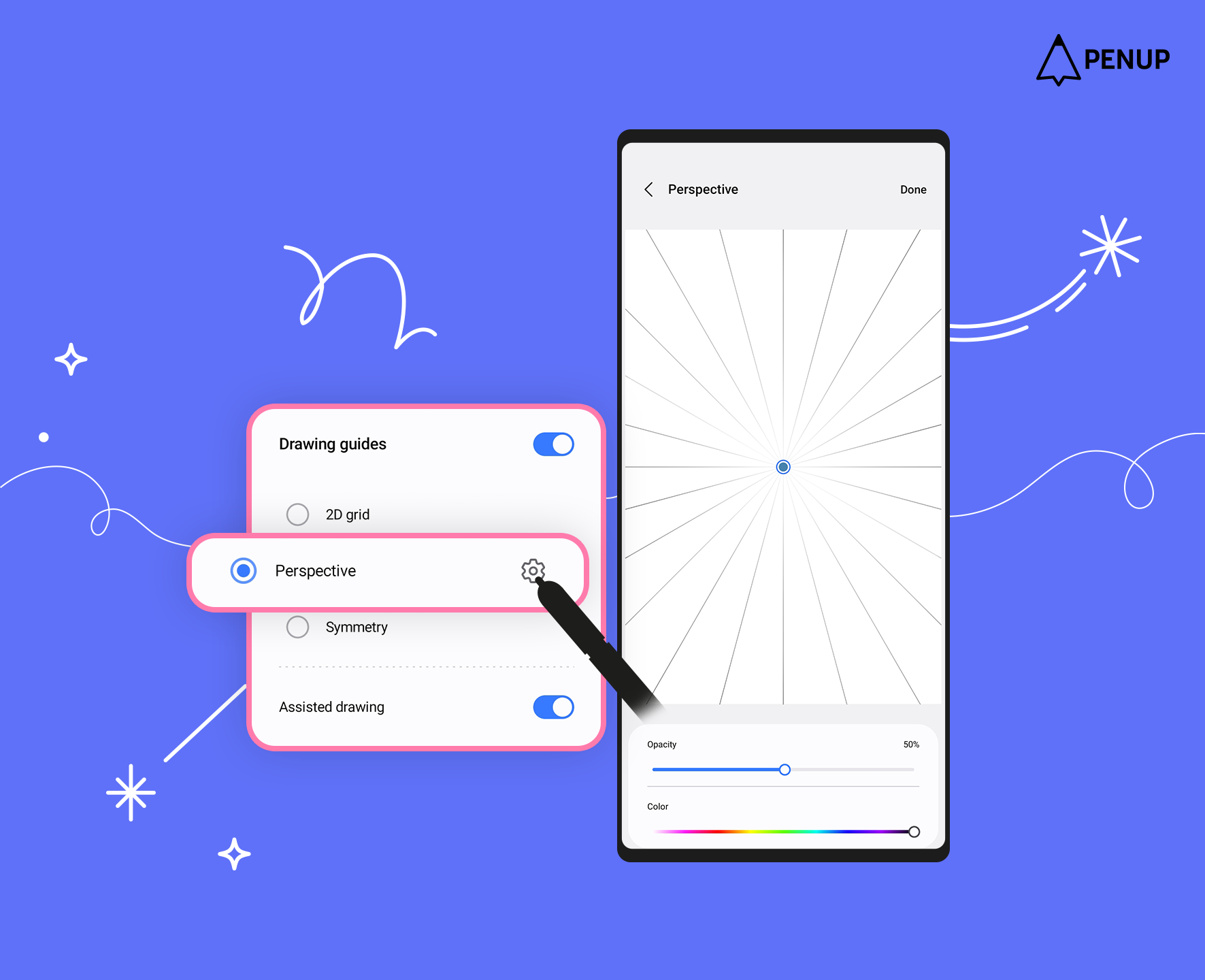
Try using the 'Perspective' feature when drawing buildings or landscapes.
With 'Perspective', you can create vanishing points to draw spaces with depth.
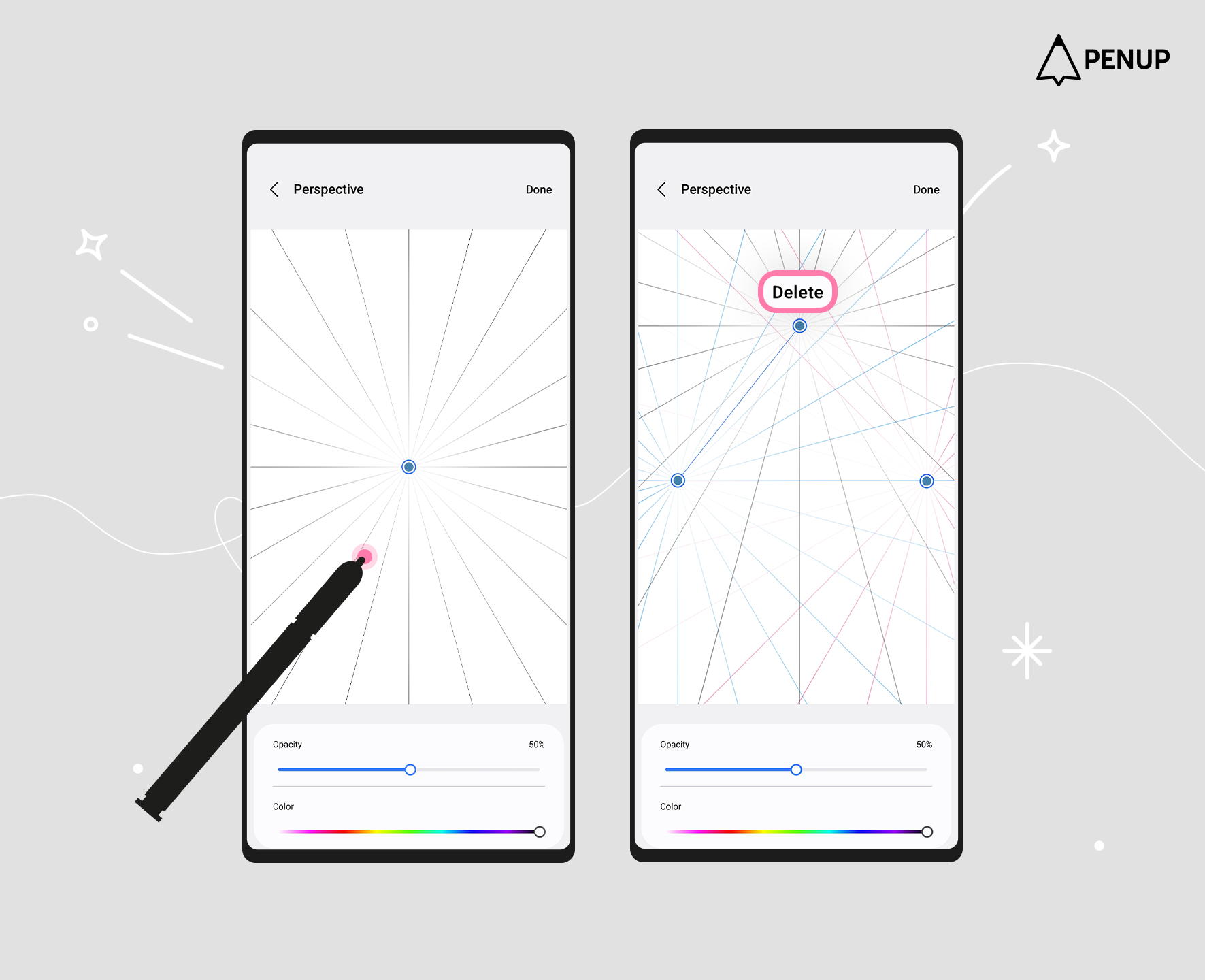
You can create one to three vanishing points by tapping the screen.
You can also delete a vanishing point by tapping it again.
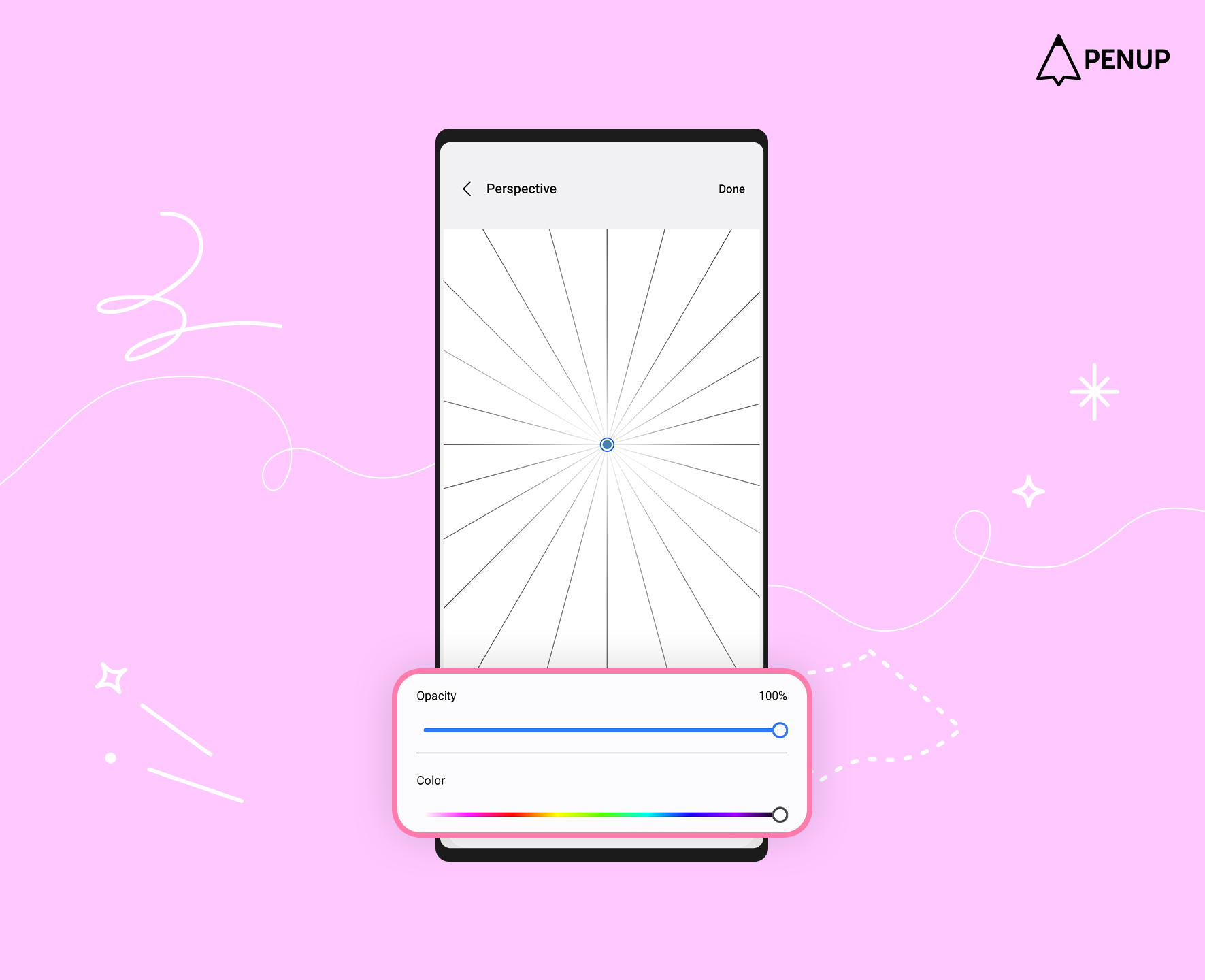
By adjusting the 'Opacity' or 'Color', you can customize the 'Perspective' guide to your liking.
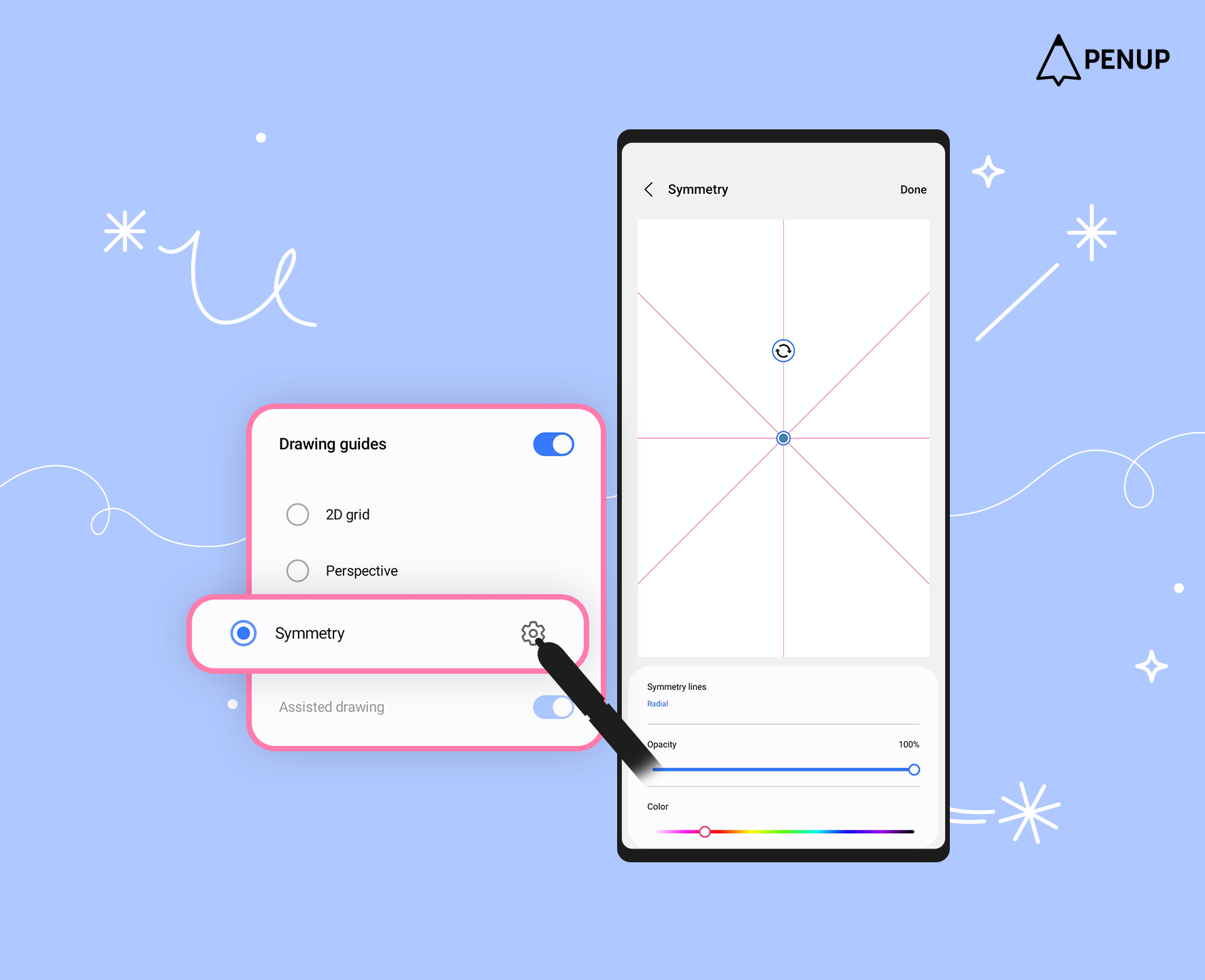
If you want to draw characters, mandalas, or geometric patterns, try using the 'Symmetry' feature.
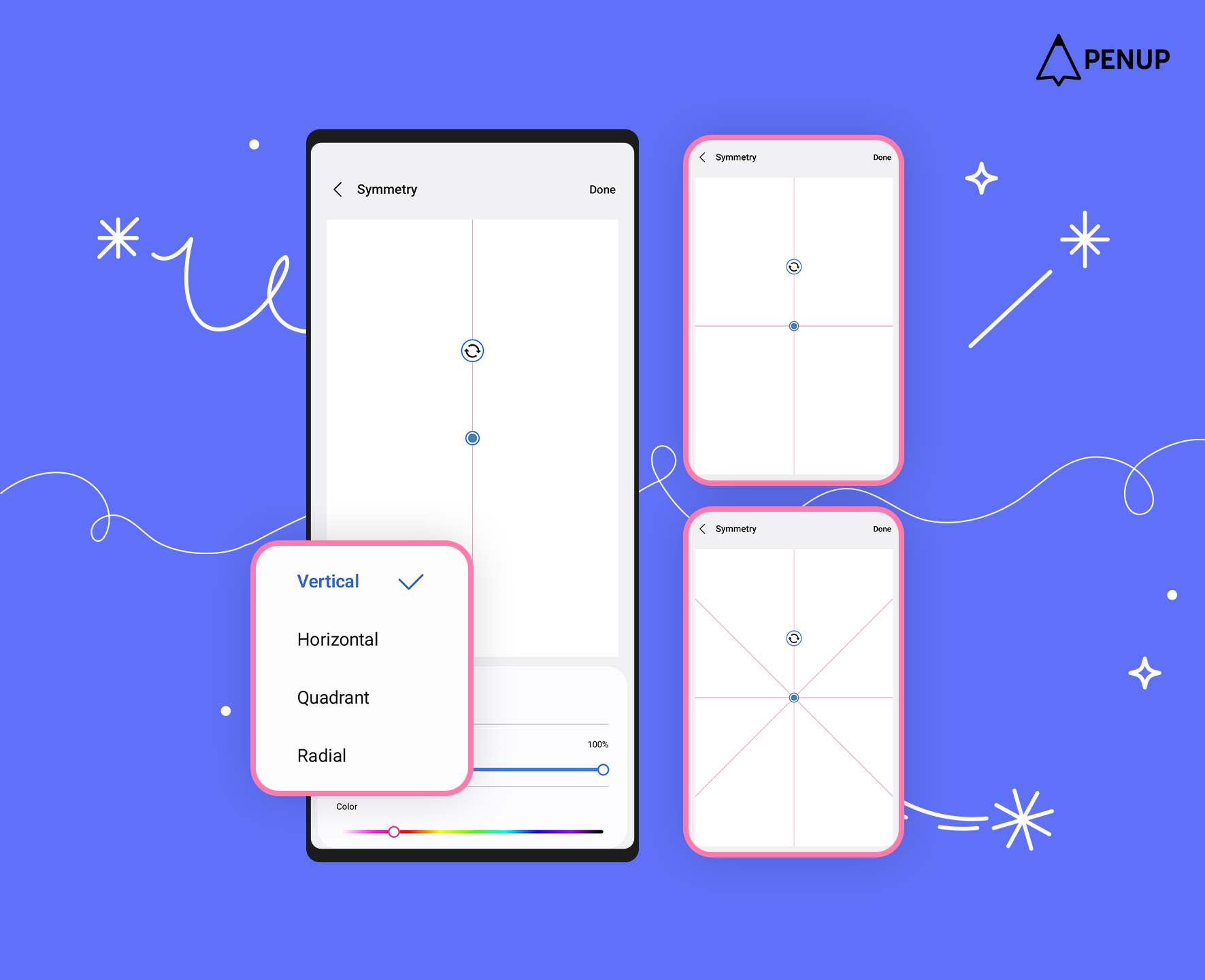
With the 'Symmetry' feature, you can draw mirrored lines on canvases divided into vertical, horizontal, quadrant, and radial sections.
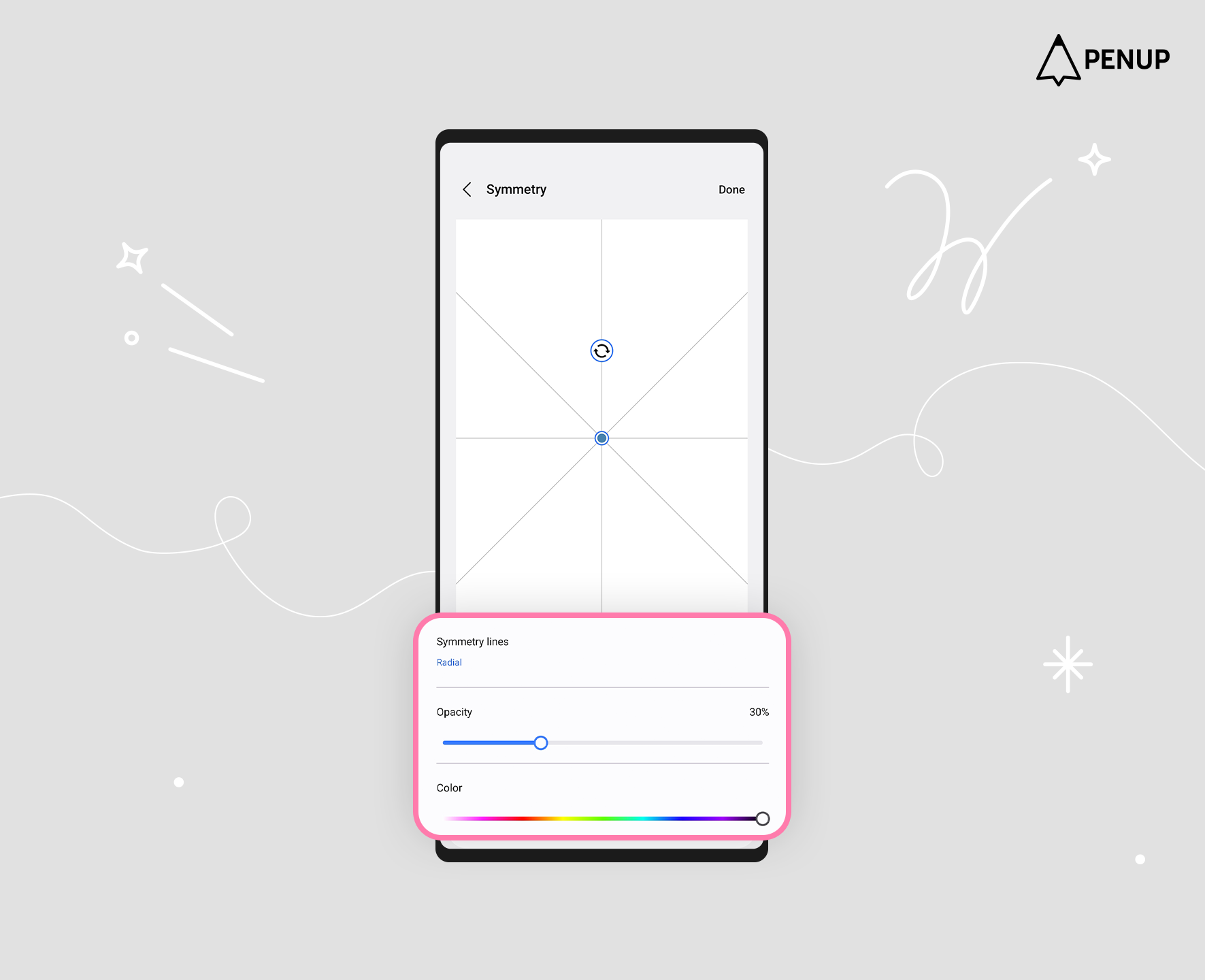
You can customize the 'Symmetry' guide using 'Opacity' and 'Color'.
The '2D grid' and 'Perspective' guides support the 'Assisted drawing' feature.
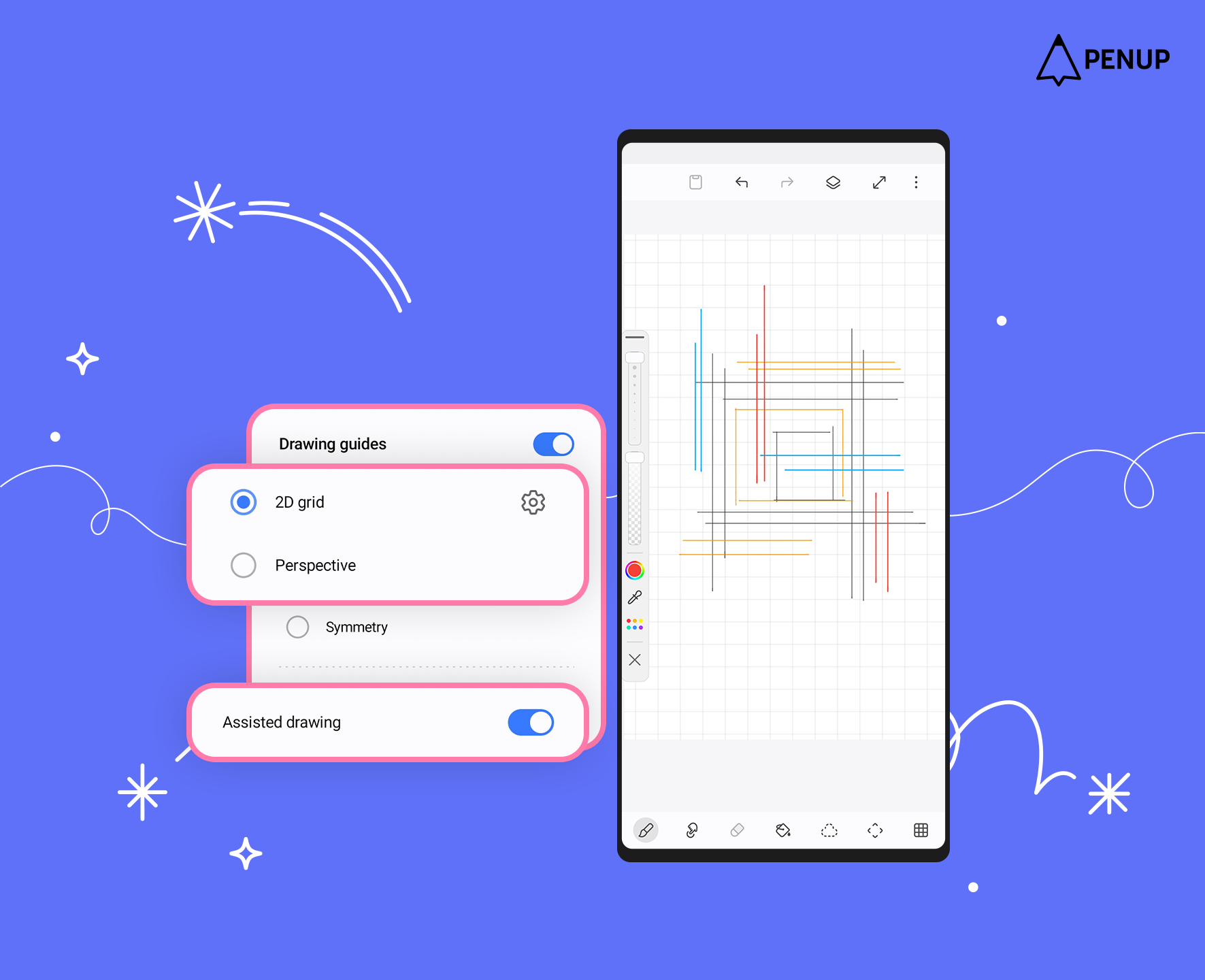
When it's ON, straight lines are drawn within the canvas guide.
When it's OFF, you can draw freely.
Use the newly added 'Assisted drawing' feature to create amazing artwork!
Second, the 'Distort' feature has been added to 'Transform'.
Unlike 'Scale', the 'Distort' feature allows each transformation point to move independently.
With 'Distort', you can stretch, bend, or warp only specific parts of your drawing.
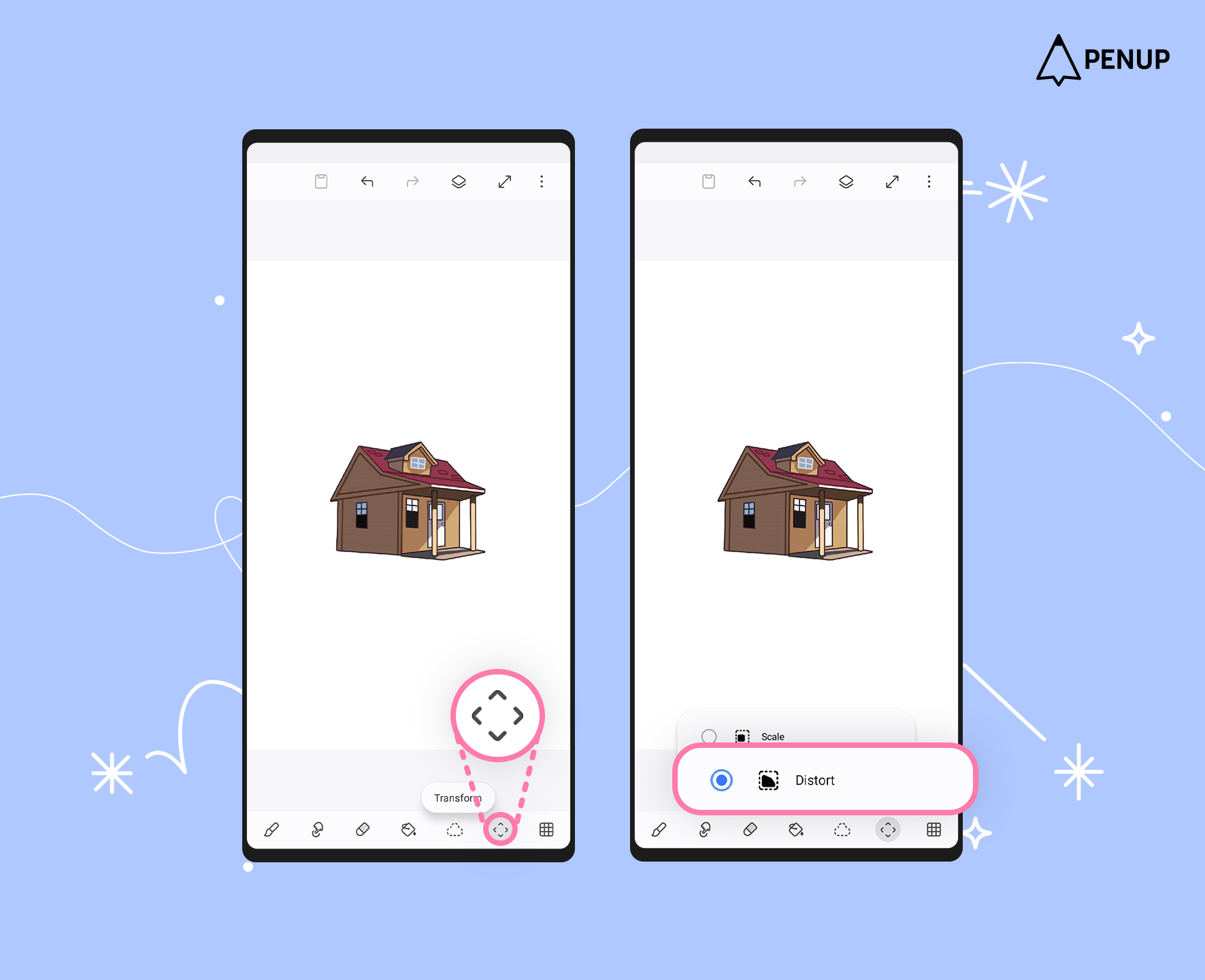
You can find the 'Distort' feature under the 'Transform' category at the bottom of the drawing tool.
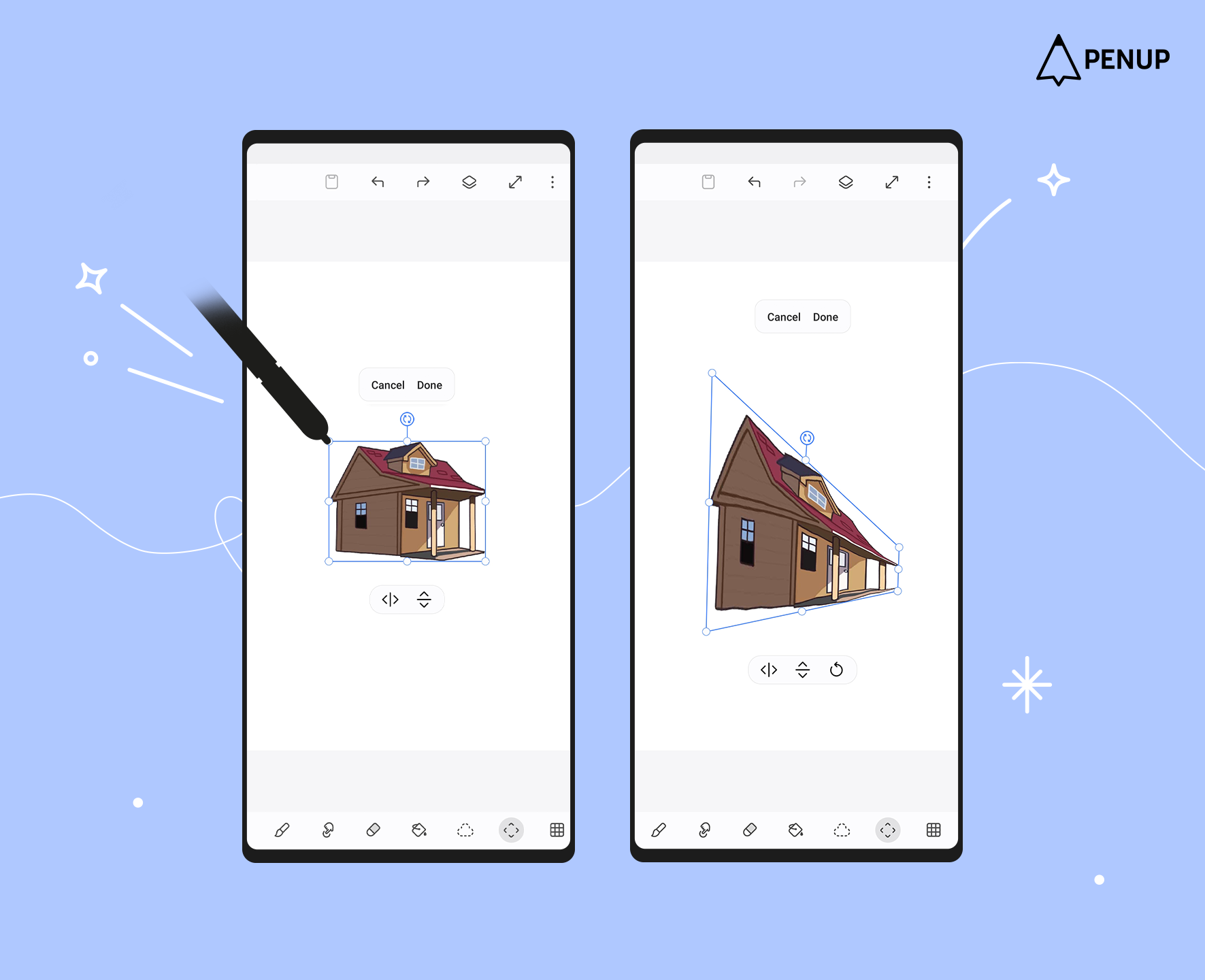
When you use 'Distort' on a selected image, you can freely move each transformation point.
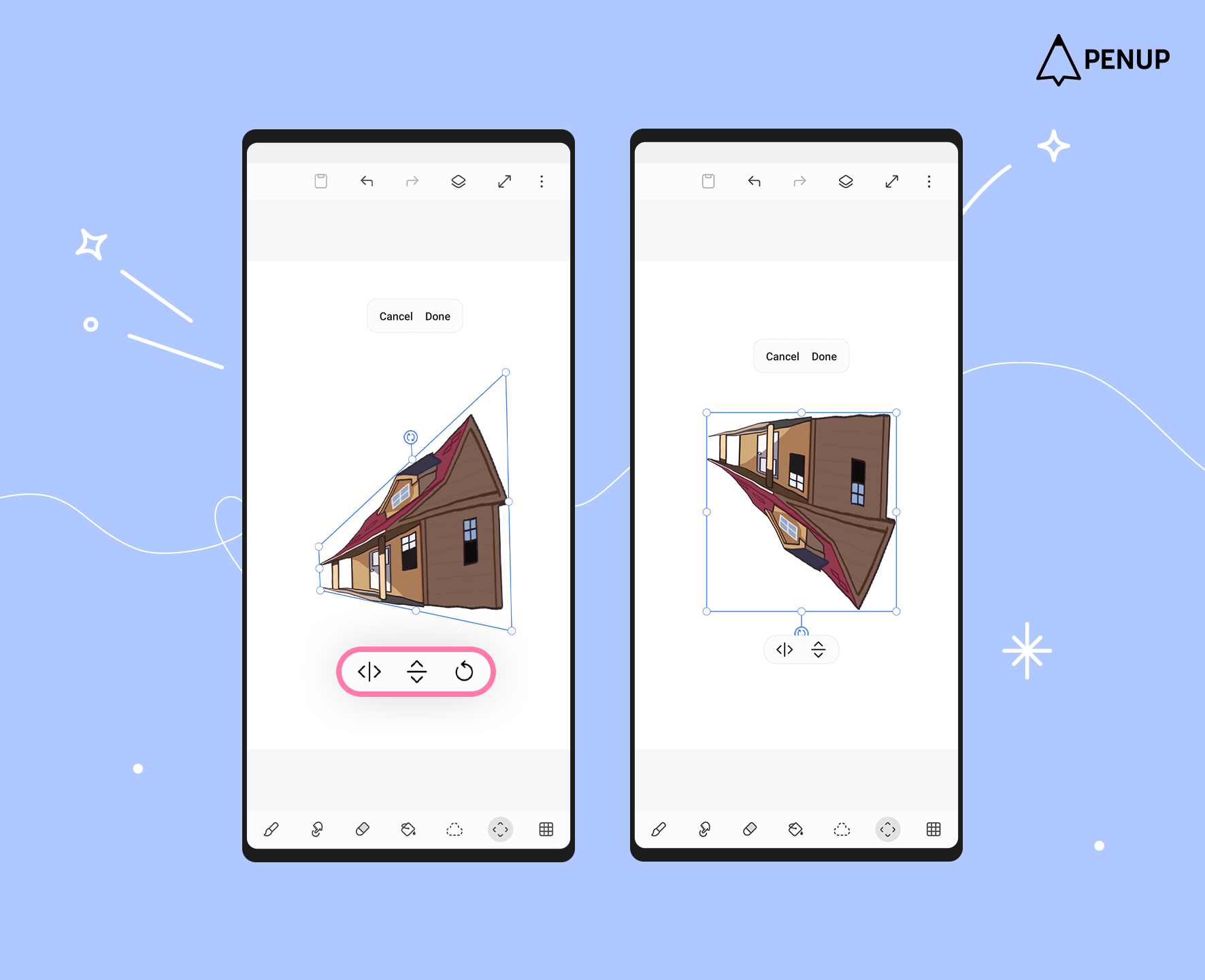
You can also use the navigation bar to flip the image vertically or horizontally, or undo actions.
Try freely transforming various shapes and images using 'Distort'!
Third, new brushes have been added.
With this update, you can use 23 new brushes.
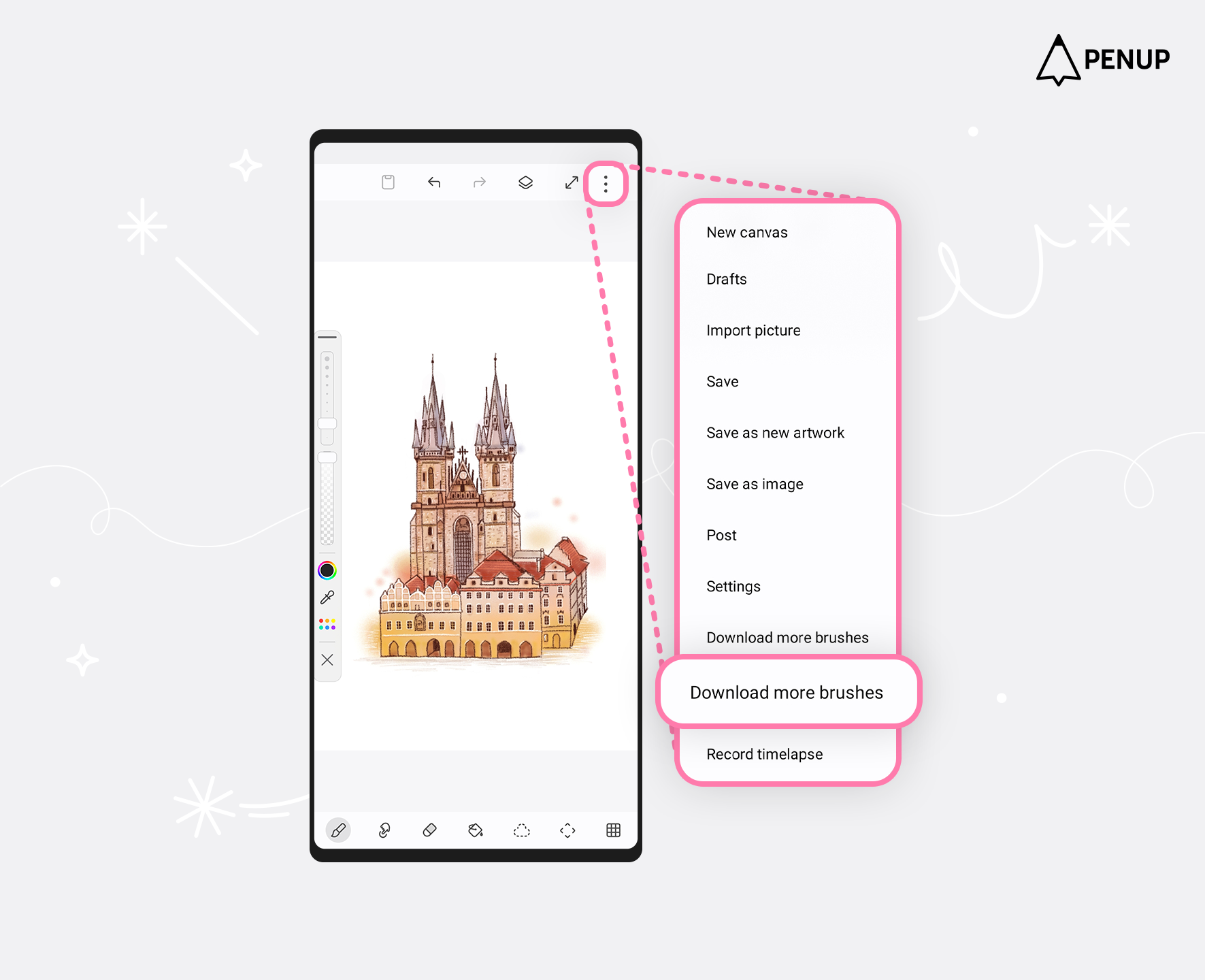
You can find these brushes in 'Download more brushes' under 'More options' at the top of the drawing tool.
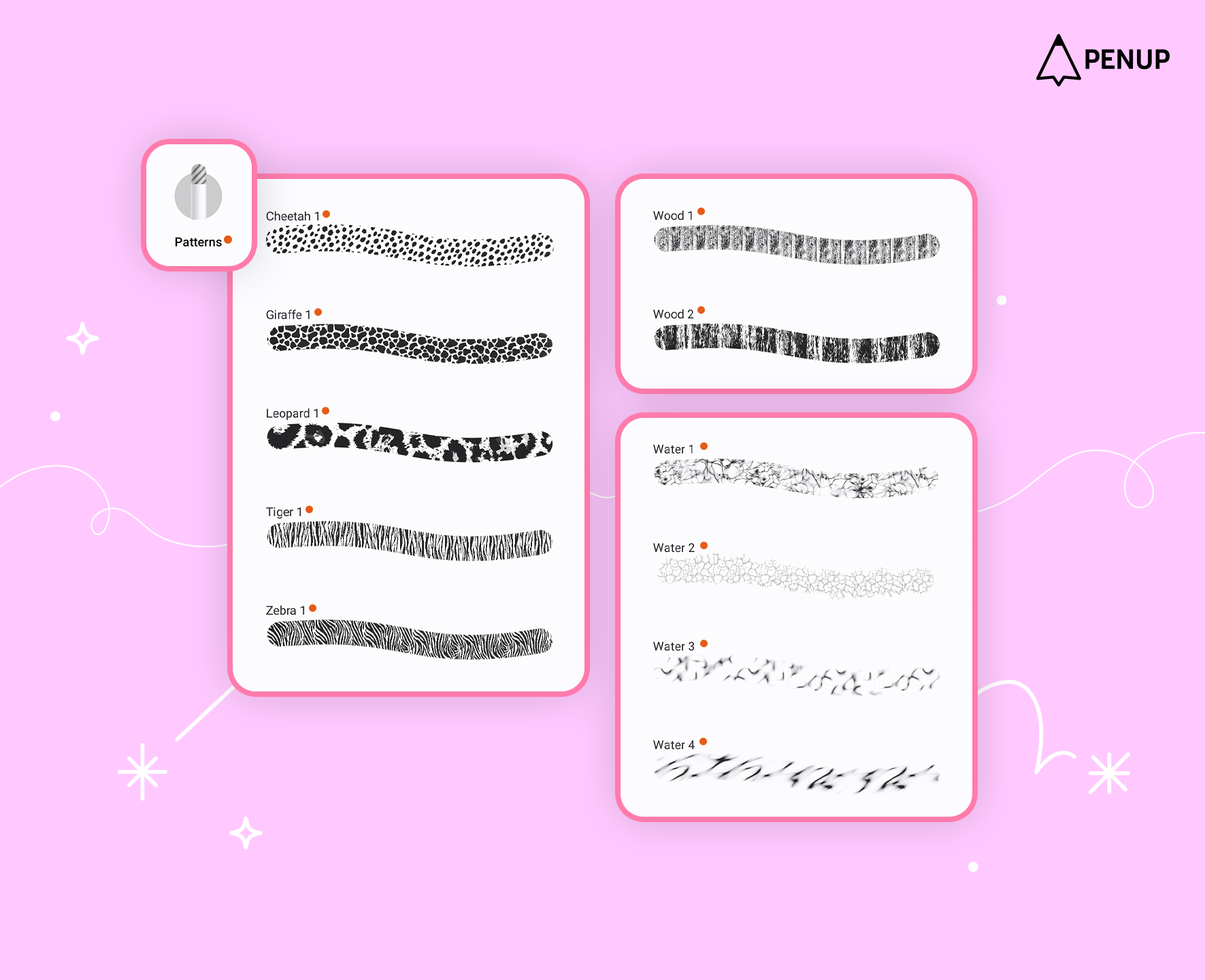
Under the 'Patterns' category, you can find five animal fur pattern brushes including tiger, cheetah, leopard, zebra, and giraffe.
You can also use four brushes that create water effects and two wood pattern brushes.
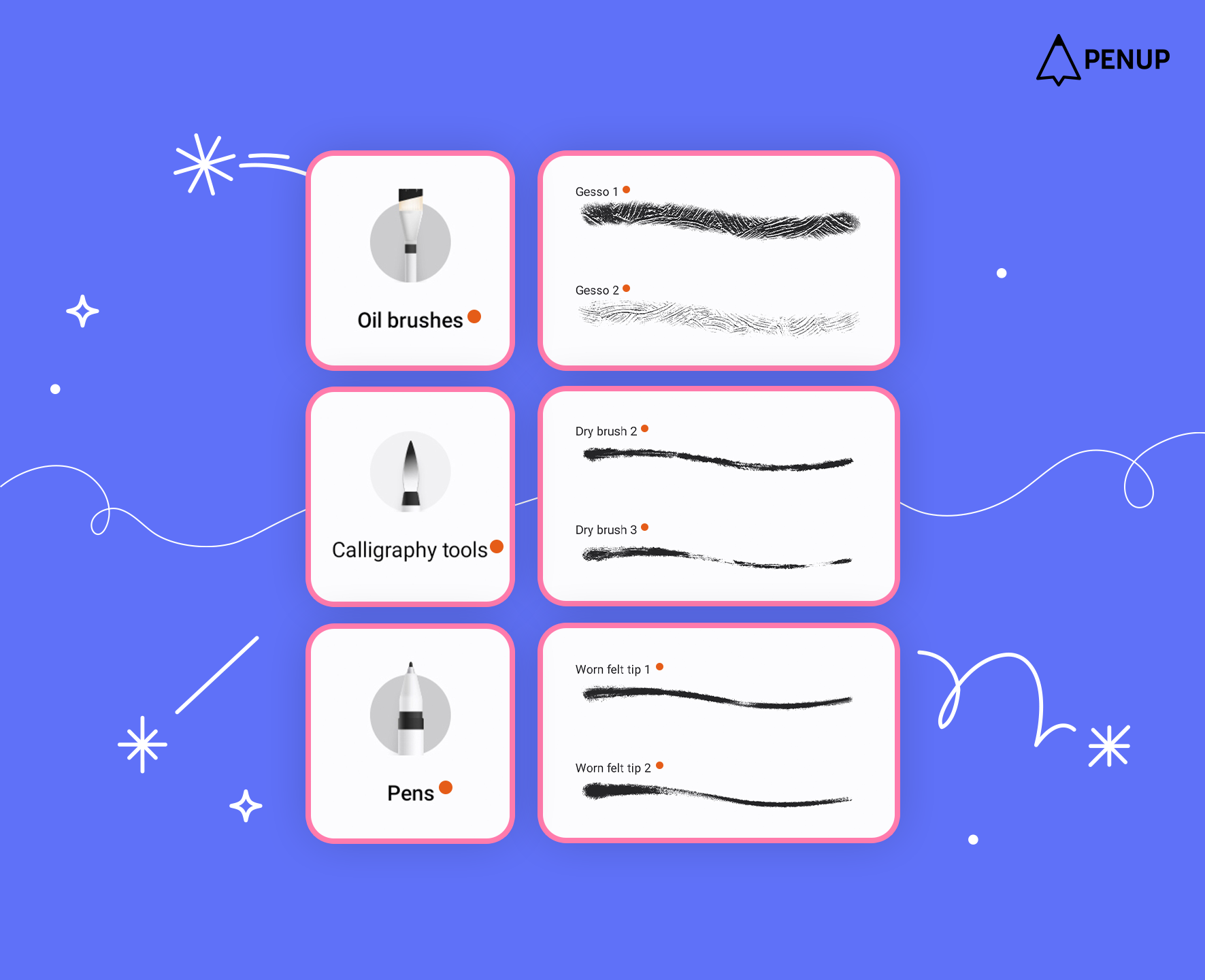
In the 'Oil brushes' category, you'll find the 'Gesso 1 and 2' brushes,
in the 'Calligraphy tools' category, the 'Dry brush 2 and 3',
and in the 'Pens' category, the 'Worn felt tip 1 and 2' brushes.
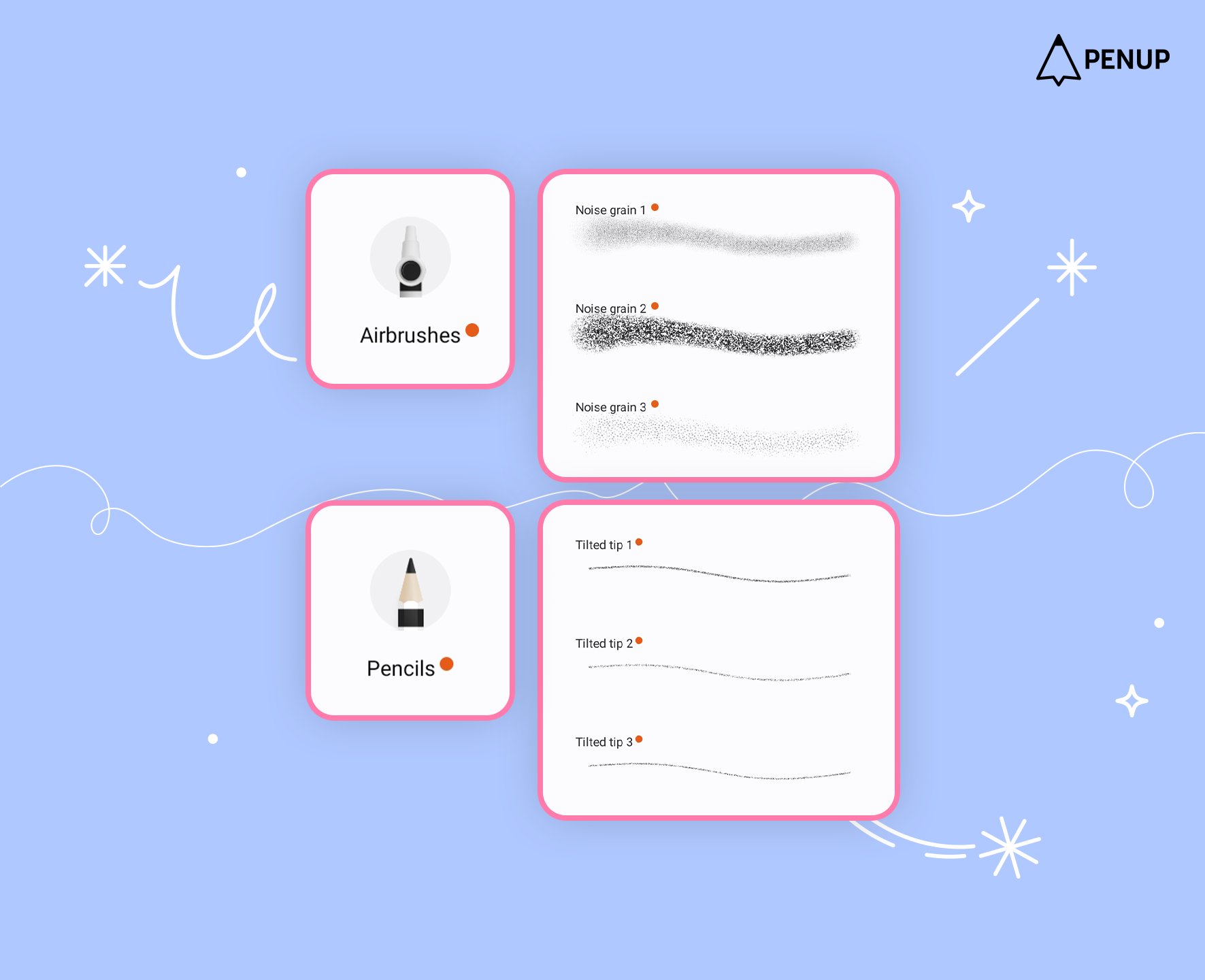
In the 'Airbrushes' category, you can download 'Noise Grain 1, 2, and 3',
and in the 'Pencils' category, 'Tilted Tip 1, 2, and 3' are available.
The PENUP team has gathered various feedback and plans to continue adding new brushes in the future.
Please look forward to it!
Other convenience features and UX improvements have been made.
We will continue to work hard to make drawing easy and fun for you through PENUP.
We look forward to your continued support and love.
Thank you.
